Help with Tags and Notes on CourtListener
Our tagging and notes features help you to tag, organize, and share cases that you are working with. To learn more about these features, continue reading below.
We hope that if you find these tools useful, you will become a member of Free Law Project, the non-profit supporting CourtListener and RECAP. It is the best thing you can do to support ongoing feature development and maintenance.
Developers can also access tags programmatically through our API.
Tags
Every tag you create has a page on CourtListener listing items that are labelled with that tag. This allows you to organize and describe our content for your own purposes or to share your tags with others.
When you are on one of your tag pages, you can add a description of the tag using markdown, and you can make the tag public so that other people can see it too.
If you do not make a tag page public, nobody else will know you have that tag. Once a tag is made public it is immediately visible to others until you make it private again. All of your public tags will be visible to others as a list of tags in your profile.
Tagging a Docket
Tags can be added to any docket by clicking the Tags button on a docket. Once clicked, a tagging tool will appear:
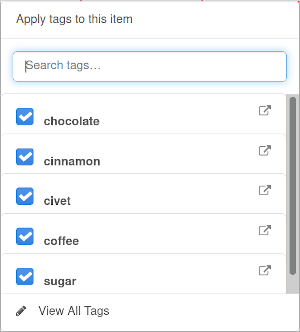
In that window, you can create new tags by typing in a name and pressing enter. If that tag already exists, it will be checked or unchecked when you press enter. If the tag does not yet exist, it will be created and the docket will be tagged with it. When you're done creating tags, close the tagging tool.
Editing or Deleting a Tag
Tags can be edited or deleted. To edit a tag, either find it on your list of tags or open it via the icon in the tagging tool.
When editing a tag, you can add a description to it using our editor or you can make it either public or private by toggling the setting in the actions drop down. Public tag pages are immediately visible to others.

Tags can be deleted either from the list of tags in your profile page or by using the actions drop down on a tag page, as shown above.
Coming Soon
For now, we only allow tagging dockets, but we hope to add more tags to more parts of CourtListener too.
Please stay tuned!
Notes
You can use the Notes feature to save dockets, PACER documents, case law, and oral arguments to the Notes tab in your account. You can add notes to each note item as well.
Notes on dockets will be shown in docket alerts that we send you, if you subscribe to a case, but are otherwise always private.
Save a Note
To save a note on an item on CourtListener, log in and click Add Note button on a docket, PACER document, decision, or oral argument recording.
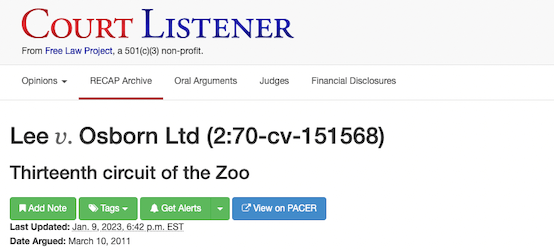
A modal pops up:
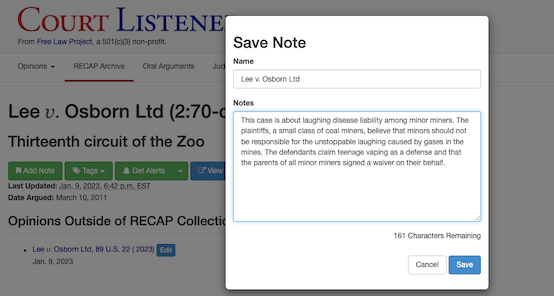
Complete the box with following information:
- Name: Required field, by default the item title, you can change it.
- Notes: Optional, a private note explaining why the item is important or relevant to you (500 character limit).
Click the save button.
Viewing, Editing or Deleting a Note
You can view your notes items in the Notes tab within your user profile panel.
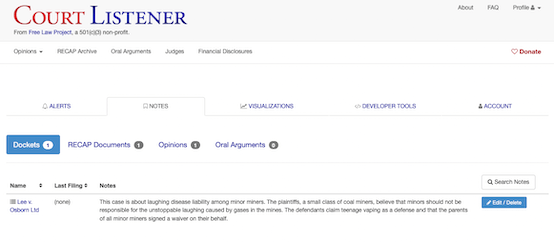
Here, you can edit or delete a note item by clicking on the "Edit/Delete" button.
A modal pops up:

You can change the content of the note and save or you can delete it by clicking the "Delete" button in the bottom left corner.